
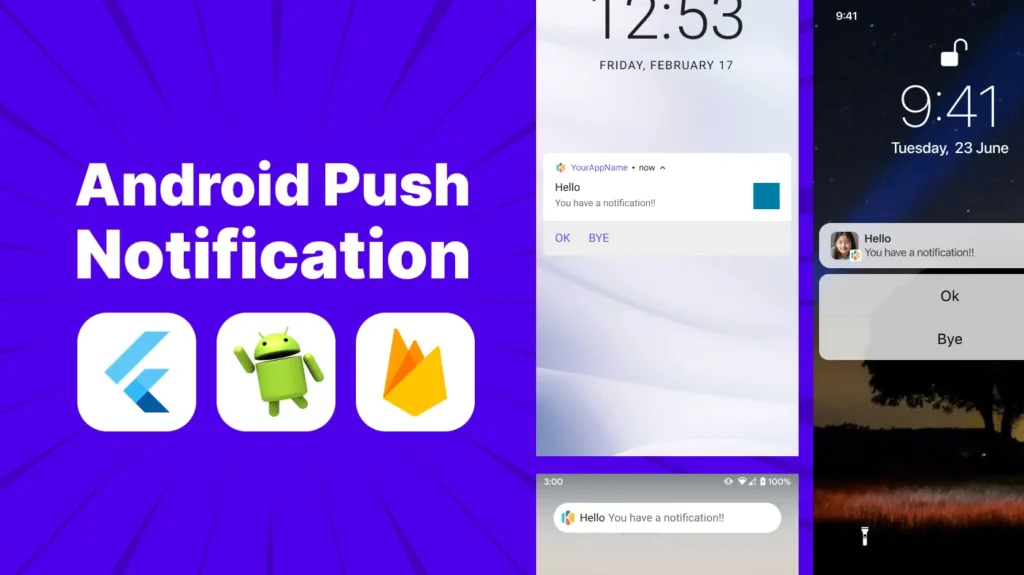
Push notifications are a crucial feature for mobile apps to engage users and deliver timely updates. Unlike iOS, Android implementation is more straightforward and doesn’t require complex certificate management. This guide provides a complete step-by-step walkthrough for enabling Android push notifications in your Flutter app using Firebase Cloud Messaging (FCM).
Good news: Android push notifications work on both emulators and real devices!
Prerequisites
Before starting, ensure you have:
- A Flutter project with Android support (
flutter create my_app) - Android Studio or VS Code installed
- A Google account for Firebase
- Basic knowledge of Flutter and Dart
Step 1: Create a Firebase Project
1.1 Set Up Firebase Console
- Go to the Firebase Console
- Click Add project or select an existing project
- Enter a project name (e.g., My Flutter App)
- Enable or disable Google Analytics (optional)
- Click Create Project
Your Firebase project is now ready!
Step 2: Configure Your Flutter Project
2.1 Install Firebase CLI
First, install the Firebase CLI and FlutterFire CLI:
# Install Firebase CLI
npm install -g firebase-tools

# Login to Firebase
firebase login

# Install FlutterFire CLI
dart pub global activate flutterfire_cli
2.2 Configure Firebase with FlutterFire
Run this command in your Flutter project root:
flutterfire configure
This command will:
- Link your Flutter project to your Firebase project
- Generate platform-specific configuration files
- Create
firebase_options.dartautomatically
This is the easiest way to configure Firebase—no manual file downloads needed!
Step 3: Add Firebase to Your Android App
3.1 Update android/build.gradle
Open android/build.gradle and add:
buildscript {
    dependencies {
        // Add this line
        classpath 'com.google.gms:google-services:latest-version'
    }
}
3.2 Update android/app/build.gradle
Open android/app/build.gradle and add at the bottom of the file:
apply plugin: '[com.google.gms.google](<http://com.google.gms.google>)-services'
Also ensure your minSdkVersion is at least 21:
android {
    defaultConfig {
        minSdkVersion 21  // or higher
    }
}
Step 4: Install Required Dependencies
Add these packages to your pubspec.yaml:
dependencies:
  flutter:
    sdk: flutter
  firebase_core: ^2.27.0
  firebase_messaging: ^14.7.0
  flutter_local_notifications: ^16.3.0
Run:
flutter pub get
Step 5: Request Notification Permissions (Android 13+)
Starting with Android 13 (API level 33), you need to request runtime notification permissions.
5.1 Update AndroidManifest.xml
Add this permission in android/app/src/main/AndroidManifest.xml:
<manifest>
    <uses-permission android:name="android.permission.INTERNET"/>
    <uses-permission android:name="[android.permission.POST](<http://android.permission.POST>)_NOTIFICATIONS"/>

    <application>
        <!-- Your app code -->
    </application>
</manifest>
5.2 Request Permission in Dart
import 'package:firebase_messaging/firebase_messaging.dart';

Future<void> requestNotificationPermission() async {
  FirebaseMessaging messaging = FirebaseMessaging.instance;

  NotificationSettings settings = await messaging.requestPermission(
    alert: true,
    badge: true,
    sound: true,
    provisional: false,
  );

  print('User granted permission: ${settings.authorizationStatus}');
}
Step 6: Initialize Firebase and Request FCM Token
6.1 Initialize Firebase in main.dart
import 'package:firebase_core/firebase_core.dart';
import 'package:firebase_messaging/firebase_messaging.dart';
import 'package:flutter/material.dart';
import 'firebase_options.dart';

// Top-level background message handler
@pragma('vm:entry-point')
Future<void> _firebaseMessagingBackgroundHandler(RemoteMessage message) async {
  await Firebase.initializeApp();
  print('Handling a background message: ${message.messageId}');
}

void main() async {
  WidgetsFlutterBinding.ensureInitialized();

  // Initialize Firebase
  await Firebase.initializeApp(
    options: DefaultFirebaseOptions.currentPlatform,
  );

  // Set background message handler
  FirebaseMessaging.onBackgroundMessage(_firebaseMessagingBackgroundHandler);

  runApp(MyApp());
}
6.2 Get FCM Token
Future<String?> getFCMToken() async {
  FirebaseMessaging messaging = FirebaseMessaging.instance;
  String? token = await messaging.getToken();

  print('FCM Token: $token');
  return token;
}
Save this token to your backend—you’ll need it to send targeted notifications.
Step 7: Handle Incoming Notifications
Firebase provides three states for handling notifications:
7.1 Foreground Messages
void setupForegroundNotificationHandler() {
  FirebaseMessaging.onMessage.listen((RemoteMessage message) {
    print('Received foreground message: ${message.notification?.title}');

    // Show notification using flutter_local_notifications
    if (message.notification != null) {
      _showLocalNotification(message);
    }
  });
}
7.2 Background/Terminated App Messages
void setupBackgroundNotificationHandler() {
  FirebaseMessaging.onMessageOpenedApp.listen((RemoteMessage message) {
    print('Notification opened app: ${message.notification?.title}');

    // Navigate to specific screen based on notification data
    if ([message.data](<http://message.data>)['screen'] != null) {
      // Navigate to screen
    }
  });
}
7.3 Show Local Notifications (Foreground)
import 'package:flutter_local_notifications/flutter_local_notifications.dart';

final FlutterLocalNotificationsPlugin flutterLocalNotificationsPlugin =
    FlutterLocalNotificationsPlugin();

Future<void> initializeLocalNotifications() async {
  const AndroidInitializationSettings androidSettings =
      AndroidInitializationSettings('@mipmap/ic_launcher');

  const InitializationSettings settings = InitializationSettings(
    android: androidSettings,
  );

  await flutterLocalNotificationsPlugin.initialize(settings);
}

Future<void> _showLocalNotification(RemoteMessage message) async {
  const AndroidNotificationDetails androidDetails = AndroidNotificationDetails(
    'default_channel',
    'Default Channel',
    channelDescription: 'Default notification channel',
    importance: Importance.high,
    priority: Priority.high,
  );

  const NotificationDetails notificationDetails = NotificationDetails(
    android: androidDetails,
  );

  await [flutterLocalNotificationsPlugin.show](<http://flutterLocalNotificationsPlugin.show>)(
    message.hashCode,
    message.notification?.title,
    message.notification?.body,
    notificationDetails,
  );
}
Step 8: Send Test Notifications
Option 1: Firebase Console
- Go to Firebase Console → Cloud Messaging
- Click Send your first message
- Enter a notification title and text
- Click Send test message
- Paste your FCM token and click Test
Option 2: Using cURL
curl -X POST <https://fcm.googleapis.com/fcm/send> \\
  -H "Authorization: key=YOUR_SERVER_KEY" \\
  -H "Content-Type: application/json" \\
  -d '{
    "to": "YOUR_FCM_TOKEN",
    "notification": {
      "title": "Hello from Firebase!",
      "body": "This is a test notification"
    }
  }'
Find your server key in Firebase Console → Project Settings → Cloud Messaging → Server Key
Step 9: Troubleshooting Common Issues
| Issue | Cause | Solution |
|---|---|---|
| FCM token is null | Firebase not initialized or Google Play Services missing | Ensure Firebase is initialized and test on a device with Play Services |
| Notifications not showing in foreground | Missing local notification implementation | Use flutter_local_notifications to display foreground messages |
| Background notifications not working | Missing background handler | Add FirebaseMessaging.onBackgroundMessage() before runApp() |
MissingPluginException | Hot reload issue | Stop the app completely and rebuild with flutter run |
| Gradle build fails | Version conflicts or missing Google Services plugin | Check build.gradle files and ensure google-services plugin is applied |
Tips and Best Practices for Push Notifications
- Test on real devices: While emulators work, real devices provide the most accurate testing environment
- Handle all notification states: Implement handlers for foreground, background, and terminated states
- Use notification channels: Android 8.0+ requires notification channels for better user control
- Store FCM tokens: Save tokens to your backend to send targeted notifications
- Handle token refresh: Listen to token refresh events with
onTokenRefresh - Add notification icons: Create custom notification icons in
android/app/src/main/res/drawable/ - Use data-only messages: For silent updates, use data-only payloads without notification field
- Test different scenarios: Test with app in foreground, background, and terminated states
Conclusion
Setting up Android push notifications in Flutter is straightforward with Firebase Cloud Messaging. Unlike iOS, Android doesn’t require complex certificate management, making the implementation process much simpler. By following this guide, you’ve learned how to:
- Configure Firebase for your Flutter Android app
- Handle notifications in different app states
- Display foreground notifications
- Test and troubleshoot common issues
With push notifications properly implemented, your app can now engage users effectively with timely updates and important information.
Pro tip: Combine push notifications with deep linking to navigate users to specific screens when they tap notifications!